1. Copy your workspace callback URL
Sign in as a workspace administrator. Open Tenant management → Single sign-on → Add connection. Select Microsoft Entra ID and copy the Sign-in redirect URI.
Use the URL shown in your workspace. It ends in /sso/callback. Do not use the public Undertitle homepage or a URL from a screenshot.
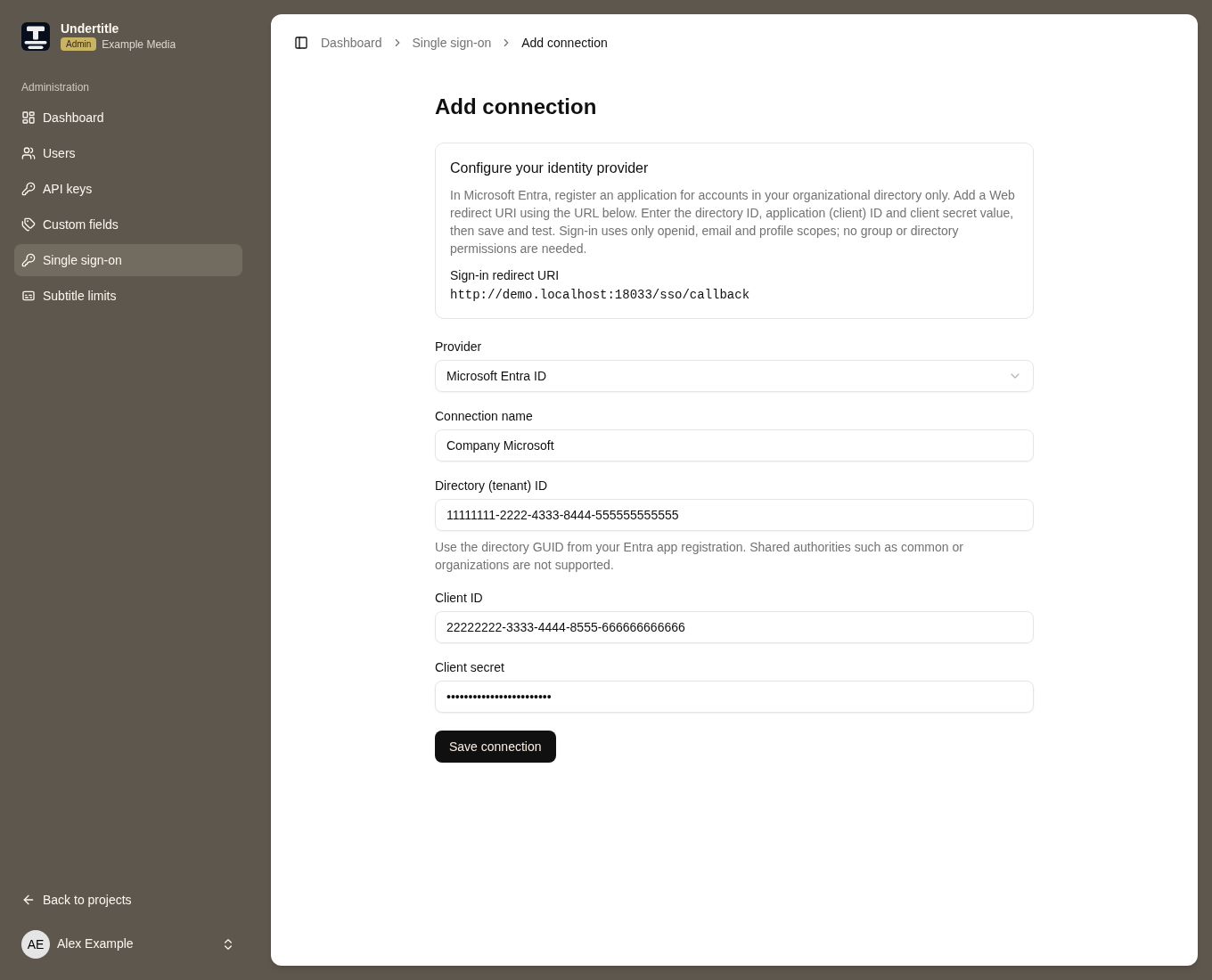
Undertitle demonstration workspace. All example credentials are fictitious. Select a screenshot to view it at full size.
2. Register an application in Microsoft Entra
Ask an Entra administrator to complete these steps if you cannot register applications.
- Open the Microsoft Entra admin center in the customer’s directory.
- Go to Entra ID → App registrations → New registration.
- Enter Undertitle as the name. Choose Accounts in this organizational directory only (Single tenant).
- Under Redirect URI, select Web and paste the exact callback URL from step 1. Choose Register.
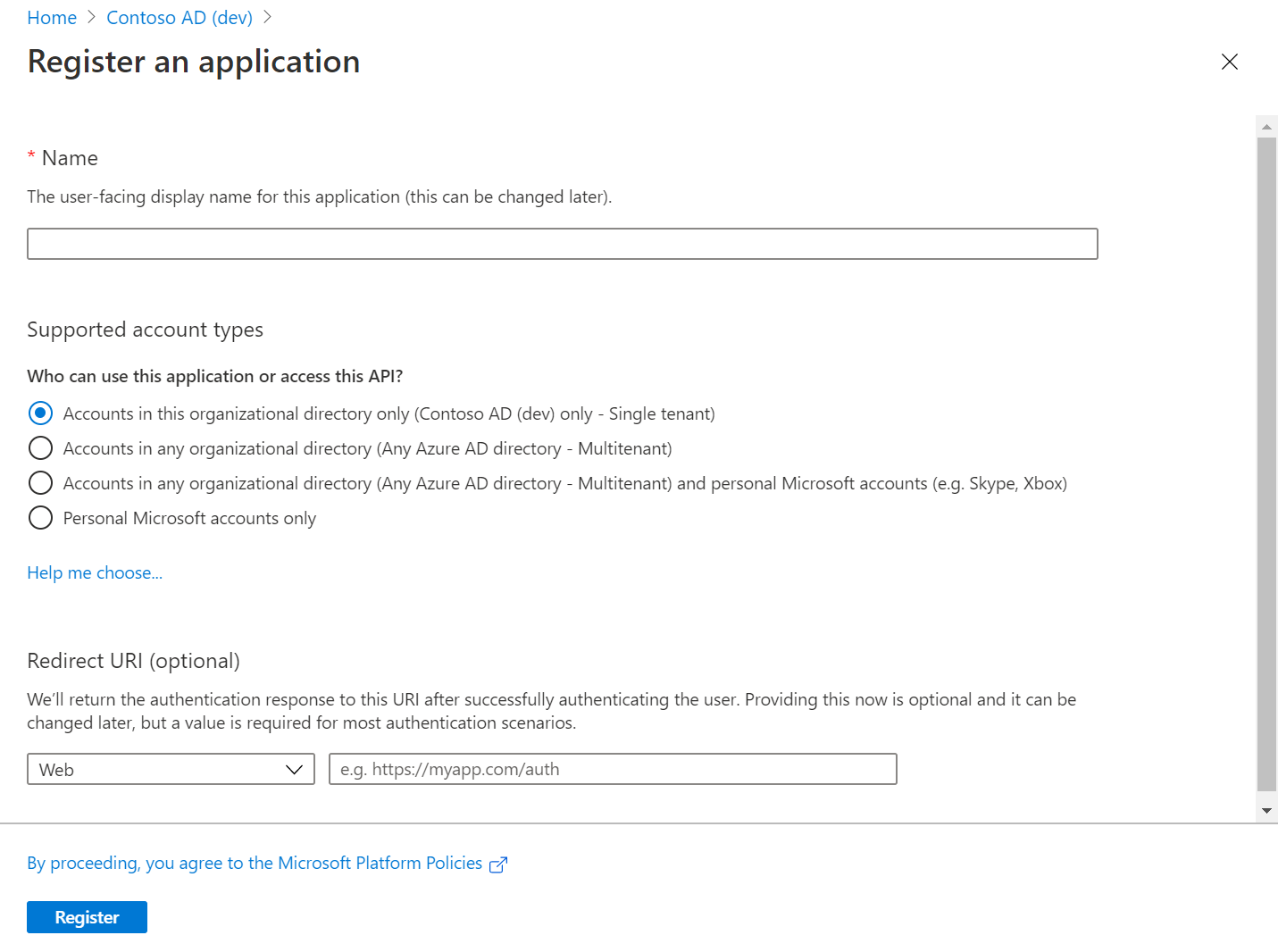
Official Microsoft example. Use your directory, name and Undertitle callback URL. Source: Microsoft Learn.
Use Web, even though Undertitle runs in a browser. This integration exchanges the authorization code on its server. Do not choose Single-page application or enable implicit access-token/ID-token flows.
3. Copy the IDs and create a secret
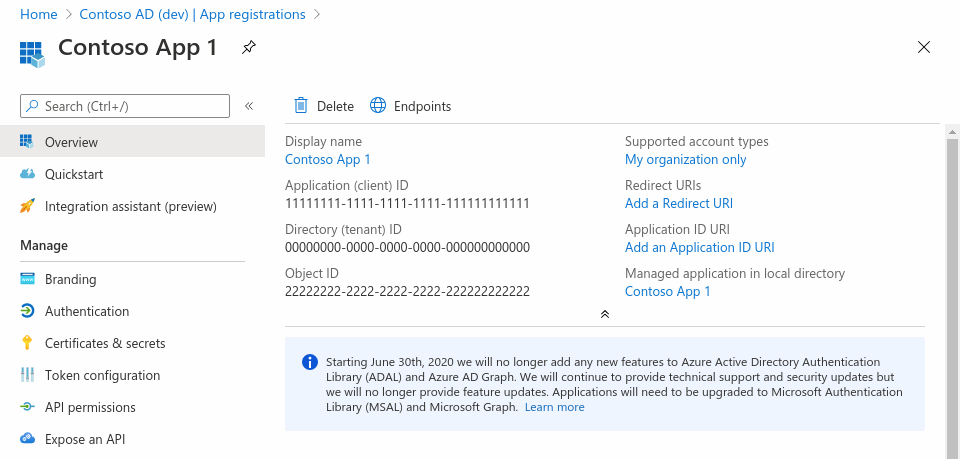
On the application’s Overview, copy Application (client) ID and Directory (tenant) ID. Do not use the Object ID.
Open Certificates & secrets → Client secrets → New client secret. Choose an expiry according to your organization’s policy and record a renewal reminder. Copy the secret’s Value immediately; Microsoft will not display the full value again. The Secret ID is not the secret.
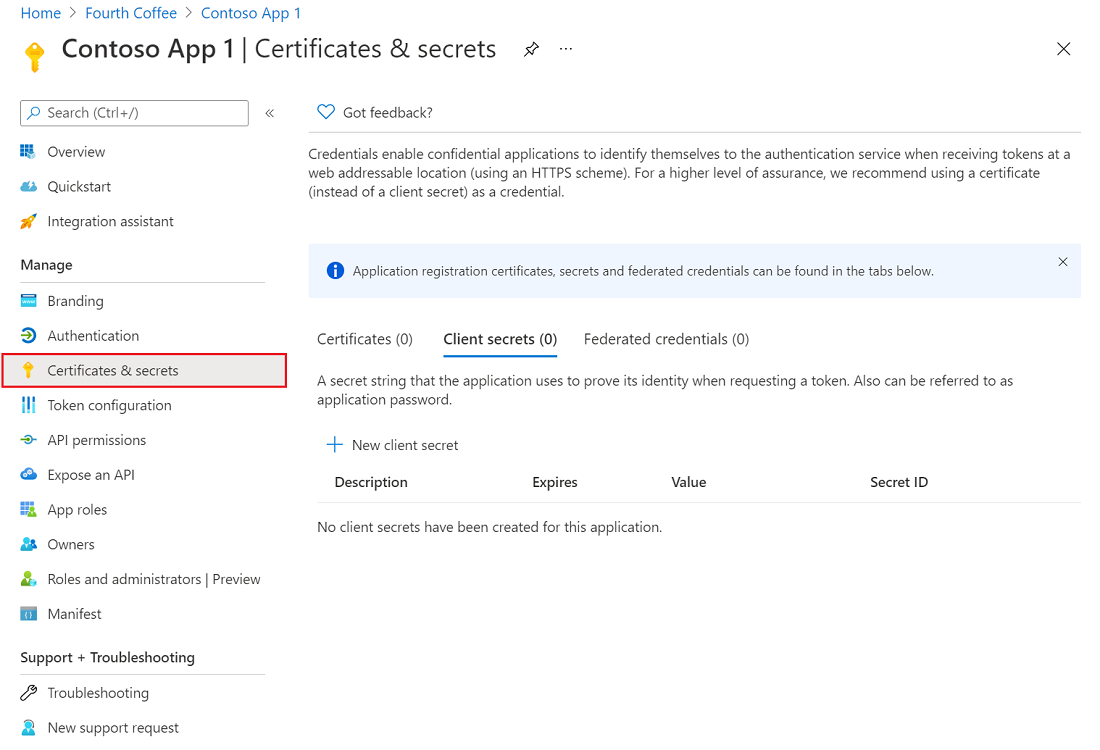
Both screenshots are Microsoft examples with placeholder app identifiers. Source and current registration instructions: Microsoft Learn.
Undertitle uses a client secret in this version. Certificate and federated-credential authentication are not configuration options.
4. Save the connection in Undertitle
| Undertitle field | Enter |
|---|---|
| Connection name | A recognizable label, such as Company Microsoft. This appears on the sign-in button. |
| Provider | Microsoft Entra ID. |
| Directory (tenant) ID | Your directory’s GUID, for example 11111111-2222-4333-8444-555555555555. |
| Client ID | Application (client) ID from Overview. |
| Client secret | The new client secret’s Value, not its Secret ID. |
Choose Save connection. No config-file changes are needed. Undertitle discovers endpoints from:
https://login.microsoftonline.com/{directory-id}/v2.0/.well-known/openid-configuration
This version supports a specific directory in Microsoft’s public cloud. Shared authorities (common, organizations, consumers), personal Microsoft accounts and sovereign-cloud endpoints are not supported.
5. Allow the intended users
Undertitle requests only the delegated OpenID Connect scopes openid, email and profile. It does not need Microsoft Graph directory, group or application permissions. If your directory requires administrator consent for these scopes, an Entra administrator must approve the sign-in request under your organization’s policy.
If the enterprise application has Assignment required? set to Yes, assign the test user and intended colleagues under Entra ID → Enterprise apps → All applications → Undertitle → Users and groups. Requiring assignment also requires administrator consent. These assignments control access at Microsoft; they do not synchronize Undertitle groups or roles. See Microsoft’s assignment instructions.
For first-login creation, the account must supply an email-shaped preferred_username (normally its UPN). Undertitle does not use Entra’s free-text email claim as a substitute. If email verification is requested, that address must also receive email.
6. Test, then enable
- On the saved Undertitle connection, choose Test sign-in.
- Authenticate with an allowed account in the configured Entra directory. Complete any MFA, consent or Conditional Access requirements.
- Return to Undertitle, confirm the successful test and choose Enable SSO.
- In a separate private browser window, open your workspace login page and choose Sign in with Company Microsoft (or your chosen name).
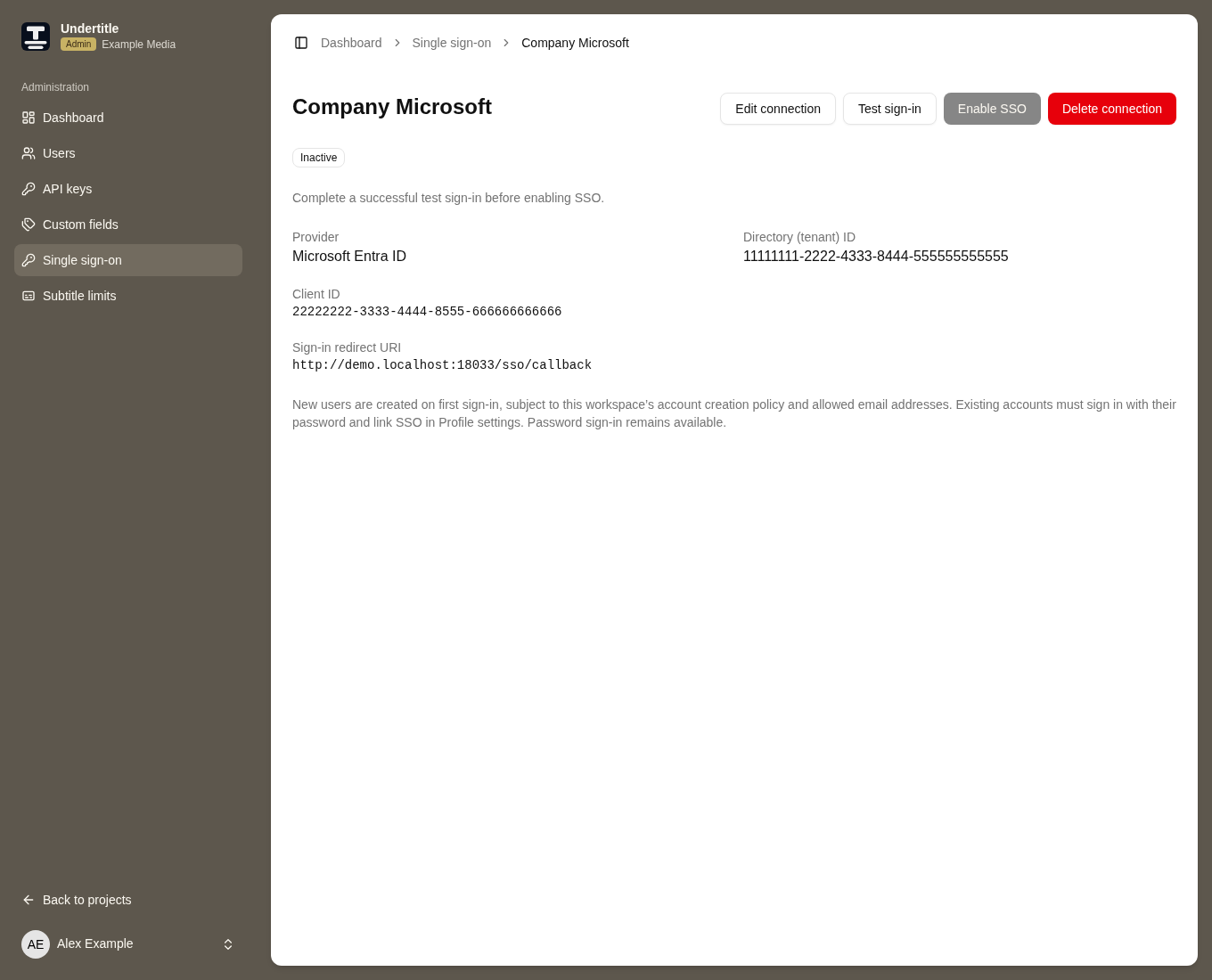
The screenshot shows an earlier interface. Testing is now optional: you can choose Enable SSO without a successful test. Test sign-in remains available.
The test preserves your existing administrator session. It does not create a user or link your administrator account. A successful first SSO login creates a workspace user with access to workspace management. Restrict application access in Entra to the people who should join the workspace. Existing accounts must sign in locally and connect SSO from Settings → Profile. See the SSO overview.
Troubleshooting and secret renewal
| Symptom | Check |
|---|---|
AADSTS50011 or redirect mismatch |
The Web redirect URI must exactly match Undertitle’s displayed URI. |
| Invalid client or secret | Use the Application client ID and secret Value. Check whether the secret expired. |
| Account is not in this tenant | Check the selected Microsoft account and the directory GUID configured in Undertitle. |
| Assignment, consent or Conditional Access error | Ask your Entra administrator to review enterprise-app access, consent and sign-in policy. |
| No usable email address | Check preferred_username. An email claim alone is insufficient for this connection. |
| An account already uses this email | Sign in locally and link SSO from the existing account’s Profile. Use password recovery if needed. |
Before the secret expires, create a replacement in Entra. In Undertitle choose Disable SSO → Edit connection, enter the new value, save, test and enable again. Revoke the old secret after a successful test. Disabling ends SSO sessions for that connection; password login stays available. An empty secret field preserves the saved secret.
Changing the directory or client ID requires a new connection and explicit linking of existing accounts. Signing out of Undertitle does not sign you out of Microsoft. Removing a Microsoft assignment does not immediately end an existing Undertitle session or remove local-password access.